> ## Documentation Index
> Fetch the complete documentation index at: https://docs.piebald.ai/llms.txt
> Use this file to discover all available pages before exploring further.
> Piebald has a custom, native folder picker that matches the look and feel of the app.
# Native folder picker
Available in Piebald Basic (Free)
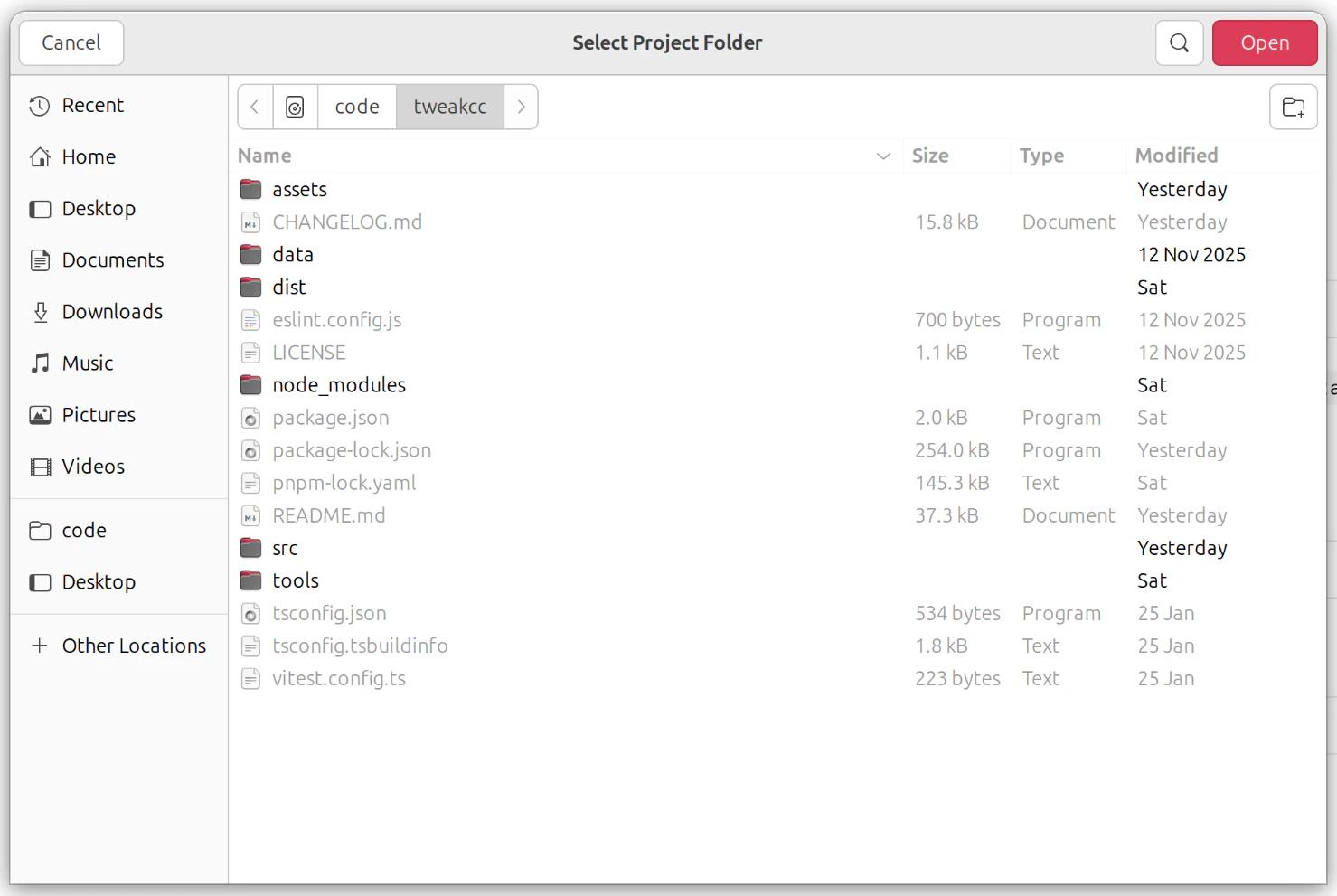
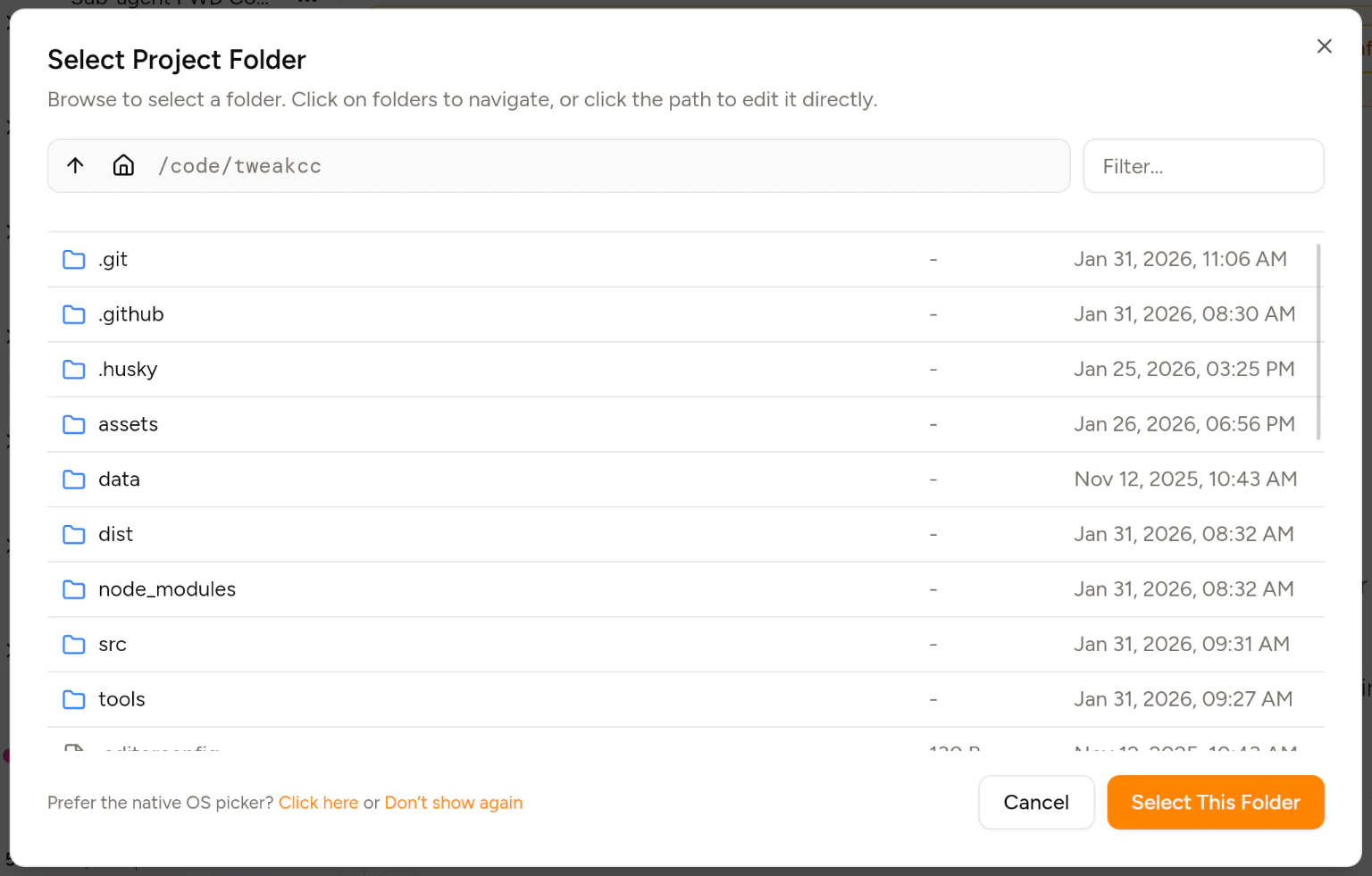 This custom folder picker can be enabled or disabled from the Settings dialog at **Settings → General → Use Built-in File Browser**. When disabled, Piebald will use the OS-native folder picker, e.g. on Ubuntu with GNOME: