> ## Documentation Index
> Fetch the complete documentation index at: https://docs.piebald.ai/llms.txt
> Use this file to discover all available pages before exploring further.
# Chat flow
In Piebald, chat flow can be manipulated in many ways, through **branching**, **queuing**, **quoting**,
## Branching
Available in [Piebald Pro](https://piebald.ai/pricing)
*Branching* is creating a new fork or branch in a chat so that you can continue chatting with the messages prior to that fork or branch.
There are two ways of branching: **replying** to a previous message, and **editing and regenerating** a previous message. Both will generate a fresh response in a new branch.
Branching allows you to be significantly more efficient with your context window. When you want to, for example, ask a followup question of an older response, or perform more tasks related to the current conversation, you don't have to include subsequent irrelevant context.
This lets you work with the conversation's valuable past context for much longer before you have to compact or start a new chat, and avoids sending unnecessary tokens to providers.
You can rename any branch by hovering the branch tab (e.g. "Branch 1" or "Branch 2") and clicking **Rename**.
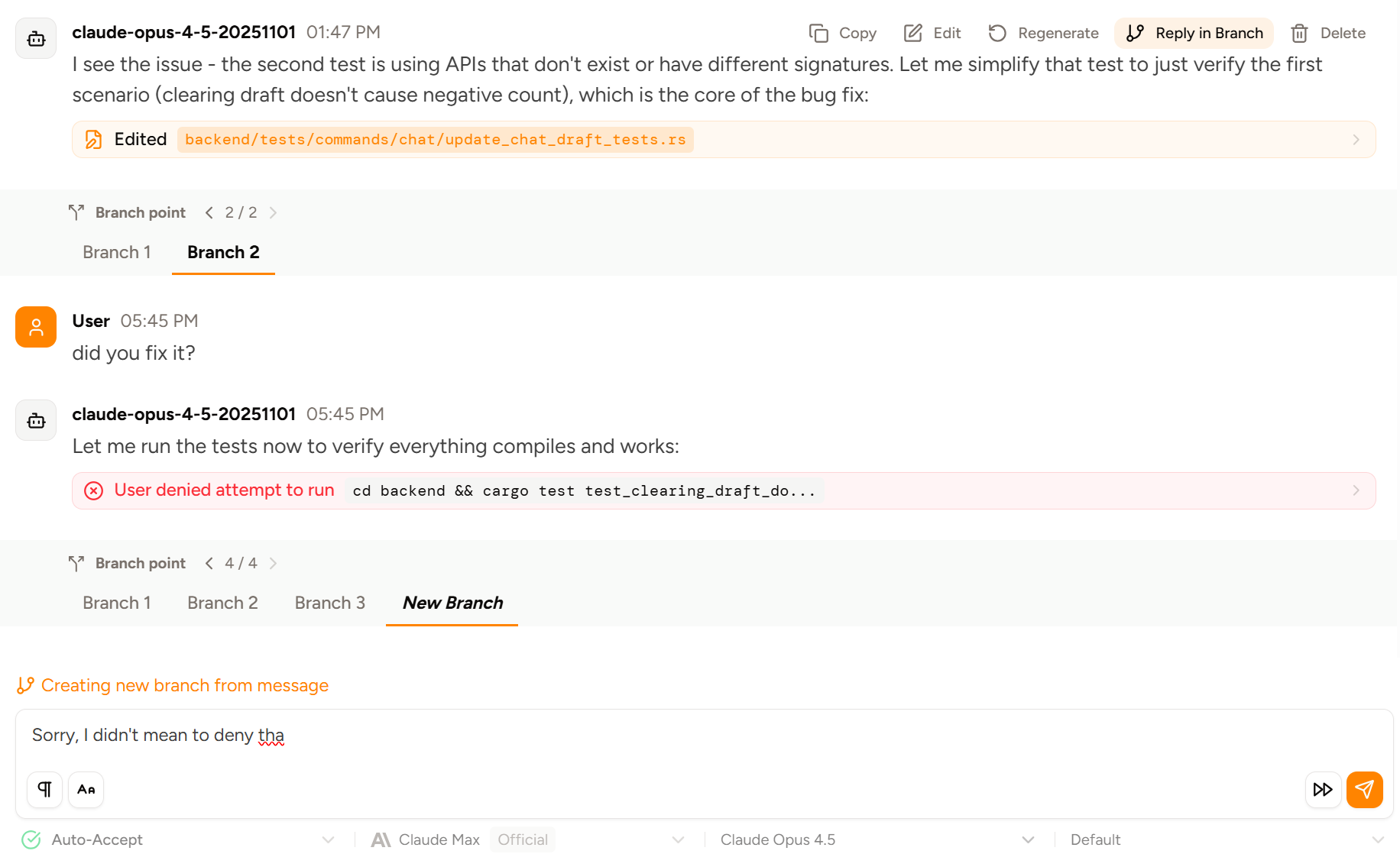 If you have branches but you've downgraded to Piebald Basic, then the branch point banner will still show but it will be locked:
 ## Quoting
Available in Piebald Basic (Free)
*Quoting* is where you copy some of the model's text and paste it back with a request for more discussion or explanation.
To quote a phrase or sentence, or discuss it more with the model, you can select the text and click the **Quote** button just below the message:
## Quoting
Available in Piebald Basic (Free)
*Quoting* is where you copy some of the model's text and paste it back with a request for more discussion or explanation.
To quote a phrase or sentence, or discuss it more with the model, you can select the text and click the **Quote** button just below the message:
 And then Piebald will insert the message directly into the message input as a markdown blockquote:
 Piebald also supports quoting text in plans proposed by the model.
## Pausing
Available in [Piebald Pro](https://piebald.ai/pricing)
*Pausing* waits for running generations and tool calls to complete and then stops the model.
Traditionally, the only way you can stop an agent is by interrupting it. If it's generating text, there will be a partial response which will have to be regenerated, wasting time, tokens, and context space. If it's executing a tool call, the subprocess will be killed and the system may be left in an inconsistent state (files partially modified, temporary files not cleaned up, handles corrupted, etc.).
Piebald takes advantage of the **agentic loop** to enable graceful pausing of the chat **without** interrupting.
### The agentic loop
The "agentic loop" is the underlying mechanism that enables AI agents to work autonomously. A conversation is a list of messages starting with the first user message; that context is sent to an AI provider and a response is generated and appended to the conversation.
If the response contains tool calls, they get executed—possibly waiting while the interface allows the user to approve or deny them—and their output is appended to the conversation context, and a second response is generated.
This cycle of *context update → regenerate* fully encapsulates the entire agentic loop and is what makes modern agentic development possible.
### Pausing the loop
In order to provide graceful pausing, Piebald hooks into the agentic loop; we simply break the loop and skip auto-approval if the chat is paused. This allows you to temporarily and cleanly stop the agent—for example, if the model has done its research and planning but your working directory isn't ready yet—without wasting time or tokens.
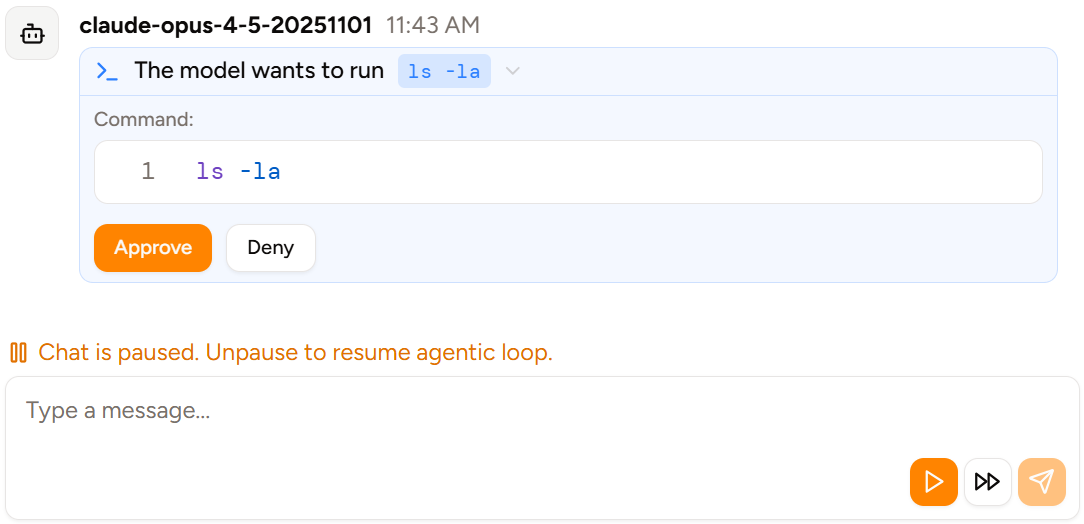
Pausing has another benefit as well. When the loop is paused, no tool calls are automatically approved, so you can intercept tools that would normally be auto-approved and edit or deny them instead. Here's an example of a read-only tool (`ls -la`) which would normally be auto-approved, but, since the chat is paused, is left waiting for manual handling:
Piebald also supports quoting text in plans proposed by the model.
## Pausing
Available in [Piebald Pro](https://piebald.ai/pricing)
*Pausing* waits for running generations and tool calls to complete and then stops the model.
Traditionally, the only way you can stop an agent is by interrupting it. If it's generating text, there will be a partial response which will have to be regenerated, wasting time, tokens, and context space. If it's executing a tool call, the subprocess will be killed and the system may be left in an inconsistent state (files partially modified, temporary files not cleaned up, handles corrupted, etc.).
Piebald takes advantage of the **agentic loop** to enable graceful pausing of the chat **without** interrupting.
### The agentic loop
The "agentic loop" is the underlying mechanism that enables AI agents to work autonomously. A conversation is a list of messages starting with the first user message; that context is sent to an AI provider and a response is generated and appended to the conversation.
If the response contains tool calls, they get executed—possibly waiting while the interface allows the user to approve or deny them—and their output is appended to the conversation context, and a second response is generated.
This cycle of *context update → regenerate* fully encapsulates the entire agentic loop and is what makes modern agentic development possible.
### Pausing the loop
In order to provide graceful pausing, Piebald hooks into the agentic loop; we simply break the loop and skip auto-approval if the chat is paused. This allows you to temporarily and cleanly stop the agent—for example, if the model has done its research and planning but your working directory isn't ready yet—without wasting time or tokens.
Pausing has another benefit as well. When the loop is paused, no tool calls are automatically approved, so you can intercept tools that would normally be auto-approved and edit or deny them instead. Here's an example of a read-only tool (`ls -la`) which would normally be auto-approved, but, since the chat is paused, is left waiting for manual handling:
 ### Resuming the loop after pausing
Resuming the loop simply picks it up where it left off; auto-approving any elligible pending tool calls, starting a new generation, and repeating. The result will be exactly the same as if you had let the agent continue without pausing.
Pausing the agentic loop requires [Piebald Pro](https://piebald.ai/pricing).
## Continuation
Available in [Piebald Pro](https://piebald.ai/pricing)
*Continuation* enables you to make the model keep going if it's been stopped without sending an extra dummy message like "continue" or "."
Click the Continue button next to the Send message button.
### Resuming the loop after pausing
Resuming the loop simply picks it up where it left off; auto-approving any elligible pending tool calls, starting a new generation, and repeating. The result will be exactly the same as if you had let the agent continue without pausing.
Pausing the agentic loop requires [Piebald Pro](https://piebald.ai/pricing).
## Continuation
Available in [Piebald Pro](https://piebald.ai/pricing)
*Continuation* enables you to make the model keep going if it's been stopped without sending an extra dummy message like "continue" or "."
Click the Continue button next to the Send message button.
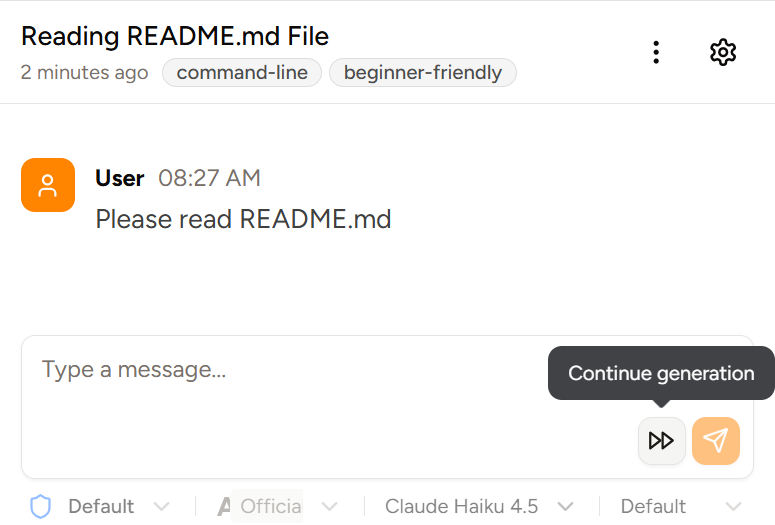 The agentic loop will be continued seamlessly. From the model's perspective there will not have been an interruption, and it will generate a response as normal.
If you click continue but the model is not in the middle of an agentic loop or has already responded without any tool calls, you may see an empty message generated when using Claude models.
Chat continuation requires [Piebald Pro](https://piebald.ai/pricing).
### Goals
Available in Piebald Basic (Free)
*Goals* force the model to continue working until it's reached the specified objective (goal). Unless the model explicitly marks the goal as complete or blocked, generation will be automatically continued again and again each time the model stops generating.
## Usage
You can start a new goal with the `/goal ` slash command. The model can also start a goal itself by calling the `CreateGoal` tool.
Each time the model completes generation, Piebald automatically sends another user message with a goal-specific context notification reminding it to continue working or complete the goal. The model can update the goal with a builtin tool, `UpdateGoal`, to mark it as complete or blocked.
The model can also get the goal details at any time using the `GetGoal` builtin tool. This tool returns the original goal objective and the current state of the goal.
You can check on the progress of the goal by clicking the "Active goal" indicator in the chat bar at the top of the app:
The agentic loop will be continued seamlessly. From the model's perspective there will not have been an interruption, and it will generate a response as normal.
If you click continue but the model is not in the middle of an agentic loop or has already responded without any tool calls, you may see an empty message generated when using Claude models.
Chat continuation requires [Piebald Pro](https://piebald.ai/pricing).
### Goals
Available in Piebald Basic (Free)
*Goals* force the model to continue working until it's reached the specified objective (goal). Unless the model explicitly marks the goal as complete or blocked, generation will be automatically continued again and again each time the model stops generating.
## Usage
You can start a new goal with the `/goal ` slash command. The model can also start a goal itself by calling the `CreateGoal` tool.
Each time the model completes generation, Piebald automatically sends another user message with a goal-specific context notification reminding it to continue working or complete the goal. The model can update the goal with a builtin tool, `UpdateGoal`, to mark it as complete or blocked.
The model can also get the goal details at any time using the `GetGoal` builtin tool. This tool returns the original goal objective and the current state of the goal.
You can check on the progress of the goal by clicking the "Active goal" indicator in the chat bar at the top of the app:
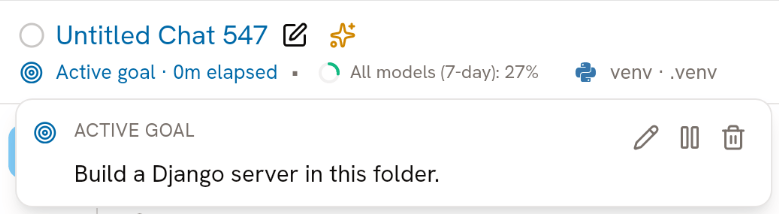 Chats with goals—active and complete—are displayed in the sidebar with a special goal indicator:

