> ## Documentation Index
> Fetch the complete documentation index at: https://docs.piebald.ai/llms.txt
> Use this file to discover all available pages before exploring further.
# Message editor
Piebald's message editor has features to make it easy and convenient to write long messages and prompts.
## Rich text editor
Available in Piebald Basic (Free)
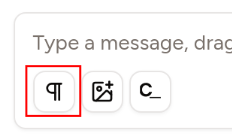
The message editor can be switched into rich text mode. Click the paragraph/pilcrow icon:
 Once in rich text mode, you can use keyboard shortcuts to activate various formatting. Press:
* Ctrl+B for **bold**
* Ctrl+I for *italic*
* Ctrl+U for underline
* Ctrl+Shift+X for
Once in rich text mode, you can use keyboard shortcuts to activate various formatting. Press:
* Ctrl+B for **bold**
* Ctrl+I for *italic*
* Ctrl+U for underline
* Ctrl+Shift+X for strikethrough
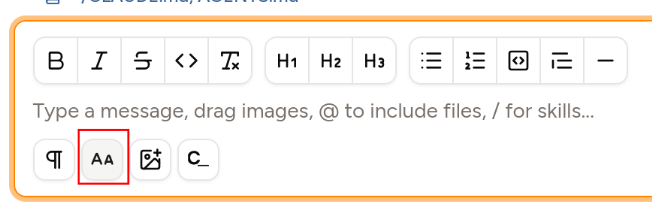
To access the full list of formatting function, click the "AA" button at the right of the rich text button. This will display the rich text toolbar:
 ## Queuing messages
Available in [Piebald Pro](https://piebald.ai/pricing)
While the agent is working, you may want to send additional messages to iterate, steer, or queue up another task when it's done with its current work. Piebald has three modes for messaging during generation:
* **Interrupt & send immediately:** This will nterrupt the current generation or tool call immediately and send the message.
* **Queue & send as soon as possible:** This will send the message when the model is finished generating the current message or calling the current tool, but without forcibly interrupting it.
* **Queue as a follow-up:** This will send the message when the agent is completely finished with the task at hand, i.e. it responds with text only, without calling any tools.
Queued messages appear in a small "queue" box directly above the message input and can be reordered, discarded, or restored to the message input for editing.
## Slash commands
Available in Piebald Basic (Free)
Piebald supports slash commands to trigger various functionality in the app. All project-specific and global agent skills are also exposed as slash commands.
### Builtin slash commands
The builtin slash commands are restricted to a single action—opening a select menu, dropdown, or dialog. In the future, though, we'll enhance them to accept parameters and complete the action instead of just opening the dropdown or dialog.
* **`/mode`**, **`/profile`**, and **`/model`** open the Permission Mode, Profile, and Model selection dropdown menus.
* **`/paste`** pastes clipboard content as a markdown codeblock.
* **`/copy-chat`** copies the entire chat as markdown.
* **`/compact`** compacts the current chat's context.
* **`/clear`** clears the current context window by creating a new chat.
* **`/discord`** opens our Discord invite page ([https://piebald.ai/discord](https://piebald.ai/discord)).
* **`/settings`** opens the Settings dialog.
* **`/search`** opens the Search chats dialog.
* **`/help`** opens this site, the Piebald docs ([https://docs.piebald.ai](https://docs.piebald.ai)).
* **`/feedback`** opens the Report feedback popup.
## OpenCues integration
Available in Piebald Basic (Free)
Piebald features an integration with [OpenCues](https://opencues.com/), enabling an AI model to complete your prompt typed into the message box. OpenCues operates via *cues* and *blanks*. The configured LLM reads your text, looking for opportunities to correct or complete. Cues trigger the LLM at intervals as you type, and blanks are triggered when you end your prompt with a space and `_`. Read more on Piebald's OpenCues integration [here](/features/integrations/opencues).
If you don't wish to use OpenCues, you can hide the OpenCues button at **Settings > OpenCues > Show the OpenCues button**.
## Queuing messages
Available in [Piebald Pro](https://piebald.ai/pricing)
While the agent is working, you may want to send additional messages to iterate, steer, or queue up another task when it's done with its current work. Piebald has three modes for messaging during generation:
* **Interrupt & send immediately:** This will nterrupt the current generation or tool call immediately and send the message.
* **Queue & send as soon as possible:** This will send the message when the model is finished generating the current message or calling the current tool, but without forcibly interrupting it.
* **Queue as a follow-up:** This will send the message when the agent is completely finished with the task at hand, i.e. it responds with text only, without calling any tools.
Queued messages appear in a small "queue" box directly above the message input and can be reordered, discarded, or restored to the message input for editing.
## Slash commands
Available in Piebald Basic (Free)
Piebald supports slash commands to trigger various functionality in the app. All project-specific and global agent skills are also exposed as slash commands.
### Builtin slash commands
The builtin slash commands are restricted to a single action—opening a select menu, dropdown, or dialog. In the future, though, we'll enhance them to accept parameters and complete the action instead of just opening the dropdown or dialog.
* **`/mode`**, **`/profile`**, and **`/model`** open the Permission Mode, Profile, and Model selection dropdown menus.
* **`/paste`** pastes clipboard content as a markdown codeblock.
* **`/copy-chat`** copies the entire chat as markdown.
* **`/compact`** compacts the current chat's context.
* **`/clear`** clears the current context window by creating a new chat.
* **`/discord`** opens our Discord invite page ([https://piebald.ai/discord](https://piebald.ai/discord)).
* **`/settings`** opens the Settings dialog.
* **`/search`** opens the Search chats dialog.
* **`/help`** opens this site, the Piebald docs ([https://docs.piebald.ai](https://docs.piebald.ai)).
* **`/feedback`** opens the Report feedback popup.
## OpenCues integration
Available in Piebald Basic (Free)
Piebald features an integration with [OpenCues](https://opencues.com/), enabling an AI model to complete your prompt typed into the message box. OpenCues operates via *cues* and *blanks*. The configured LLM reads your text, looking for opportunities to correct or complete. Cues trigger the LLM at intervals as you type, and blanks are triggered when you end your prompt with a space and `_`. Read more on Piebald's OpenCues integration [here](/features/integrations/opencues).
If you don't wish to use OpenCues, you can hide the OpenCues button at **Settings > OpenCues > Show the OpenCues button**.