> ## Documentation Index
> Fetch the complete documentation index at: https://docs.piebald.ai/llms.txt
> Use this file to discover all available pages before exploring further.
# Chat sidebar
Available in Piebald Basic (Free)
In Piebald, the chat sidebar lists all projects and their active chats. Chats that use the **Backlog** [chat status](/features/managing-chats/chat-statuses) are also displayed, while **Completed** and **Abandoned** chats are hidden in the **All Chats** section.
## Usage
### Viewing all chats
To view all chats, hover the project/worktree and click the small chats icon:
 This will display all chats—active, backlog, completed, and abandoned.
### Creating a new chat
Click the small new chat icon to create a new chat:
This will display all chats—active, backlog, completed, and abandoned.
### Creating a new chat
Click the small new chat icon to create a new chat:
 This will create a new chat in that project. The new chat won't have any status, so will be active and will display in the sidebar until you mark it with a status.
You can also [create new terminals](/features/development-experience/integrated-terminal#creating-new-terminals) from the sidebar.
### Hiding projects
Projects can be hidden even if they have active or backlog chats. Click the cog icon and choose **Hide**.
This will create a new chat in that project. The new chat won't have any status, so will be active and will display in the sidebar until you mark it with a status.
You can also [create new terminals](/features/development-experience/integrated-terminal#creating-new-terminals) from the sidebar.
### Hiding projects
Projects can be hidden even if they have active or backlog chats. Click the cog icon and choose **Hide**.
 ### Showing hidden projects
If you've hidden a project or it's been automatically hidden, you can show it again at any time. Click the "NN PROJECTS" dropdown at the top of the sidebar and choose the project:
### Showing hidden projects
If you've hidden a project or it's been automatically hidden, you can show it again at any time. Click the "NN PROJECTS" dropdown at the top of the sidebar and choose the project:
 ### Switching to the Code section
The Code section has all the tools you need to read and write code—file browser, code editor, Git viewer, code search, etc. To switch to the code view, click the small code icon:
### Switching to the Code section
The Code section has all the tools you need to read and write code—file browser, code editor, Git viewer, code search, etc. To switch to the code view, click the small code icon:
 ### Compact mode
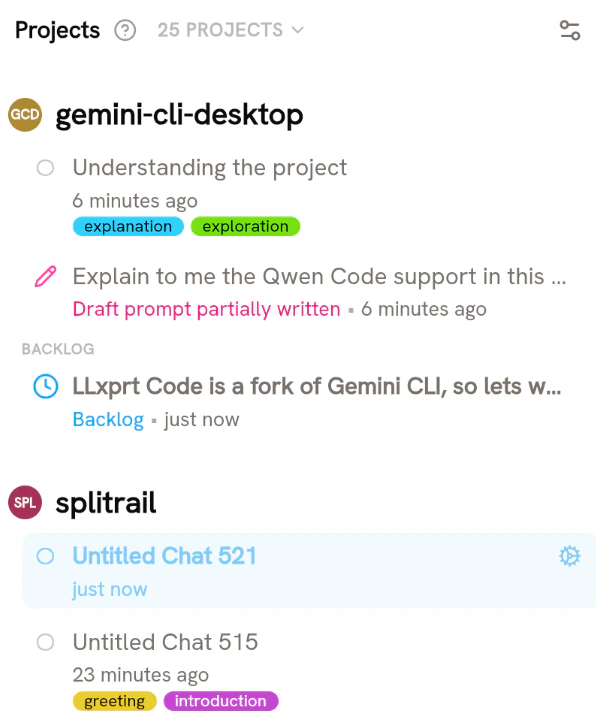
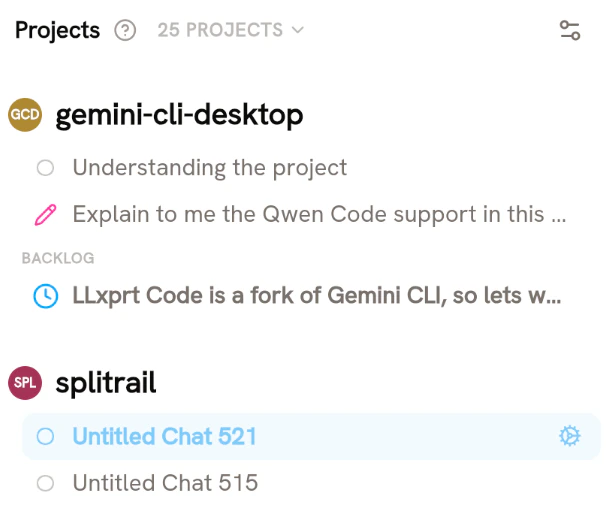
By default, lots of information about chats are displayed in the sidebar—chat tags, last modified date, etc. If you don't want to see all this information, and you just care about seeing the chat title, you can enable **compact mode**.
### Compact mode
By default, lots of information about chats are displayed in the sidebar—chat tags, last modified date, etc. If you don't want to see all this information, and you just care about seeing the chat title, you can enable **compact mode**.
 With compact mode off, the sidebar looks like this:
 With compact mode on, the sidebar is transformed:
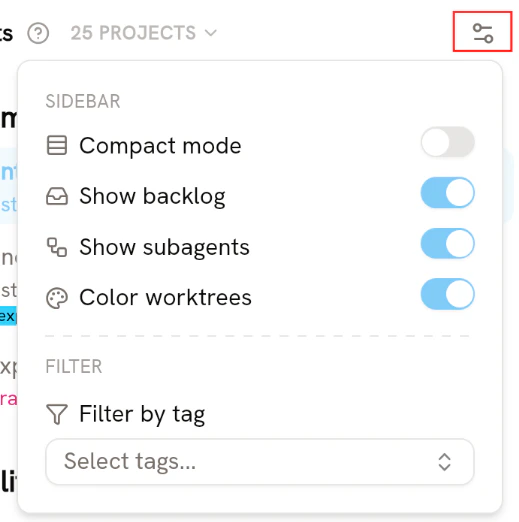
 You can further compact the sidebar and reduce cognitive complexity by hiding backlog chats and subagent chats.
### Disabling worktree coloring
If you don't like worktrees being colored, you can disable the **Color worktree** configuration option in the configuration panel shown above. Worktrees will then be displayed in the same color as active chats (e.g. the "Understanding the project" chat above).
### Filtering by chat tags
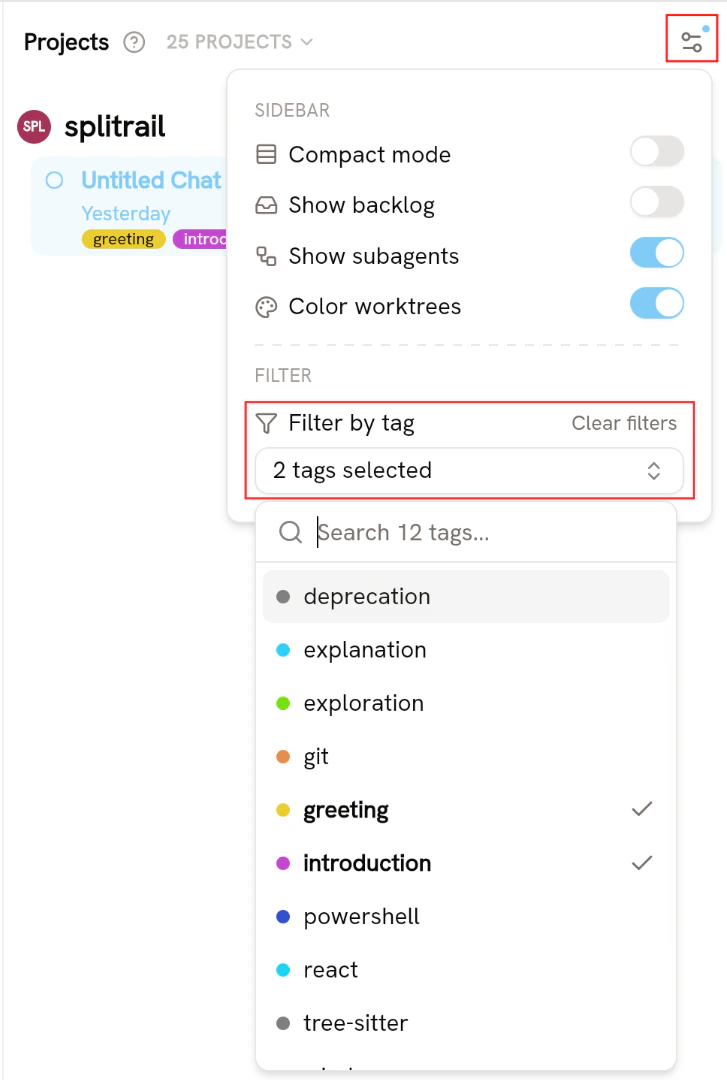
If you've assigned tags to your chats, you can filter all chats by those tags. If you have compact mode off, you can click a tag to filter by it. Clicking other tags will filter by those tags too—e.g. clicking the "greeting" tag would filter for chats that have that tag, and clicking the "introduction" tag would filter for chats that have both tags. Clicking on either one would remove that tag from the filter.
To filter by any tag, and to see the full list of tags being used for filter, open the configuration panel by clicking the button in the top right corner. Then open the "Filter by tag" dropdown at the bottom of the panel.
You can further compact the sidebar and reduce cognitive complexity by hiding backlog chats and subagent chats.
### Disabling worktree coloring
If you don't like worktrees being colored, you can disable the **Color worktree** configuration option in the configuration panel shown above. Worktrees will then be displayed in the same color as active chats (e.g. the "Understanding the project" chat above).
### Filtering by chat tags
If you've assigned tags to your chats, you can filter all chats by those tags. If you have compact mode off, you can click a tag to filter by it. Clicking other tags will filter by those tags too—e.g. clicking the "greeting" tag would filter for chats that have that tag, and clicking the "introduction" tag would filter for chats that have both tags. Clicking on either one would remove that tag from the filter.
To filter by any tag, and to see the full list of tags being used for filter, open the configuration panel by clicking the button in the top right corner. Then open the "Filter by tag" dropdown at the bottom of the panel.
 ### Other chat details displayed in the sidebar
The sidebar also displays other details about chats:
* **Subagent** chats are displayed under their respective parent chats. They're displayed in smaller text and in a more narrow row.
* Chats with [**goals**](/features/agentic/goals) display with a denim-colored "active goal" indicator.
### Other chat details displayed in the sidebar
The sidebar also displays other details about chats:
* **Subagent** chats are displayed under their respective parent chats. They're displayed in smaller text and in a more narrow row.
* Chats with [**goals**](/features/agentic/goals) display with a denim-colored "active goal" indicator.