> ## Documentation Index
> Fetch the complete documentation index at: https://docs.piebald.ai/llms.txt
> Use this file to discover all available pages before exploring further.
# Chat statuses
Available in Piebald Basic (Free)
In Piebald, once you're done with a chat, you can assign it a **status** of **Done**, **Backlog**, or **Abandoned**. Chats with the Done or Abandoned status are hidden from your active chat sidebar. Backlog chats are shown in a subsection of the project/worktree. If you don't assign any status, the chat will be considered and marked as in progress.
### Marking chats
You can assign a status to a chat using three methods:
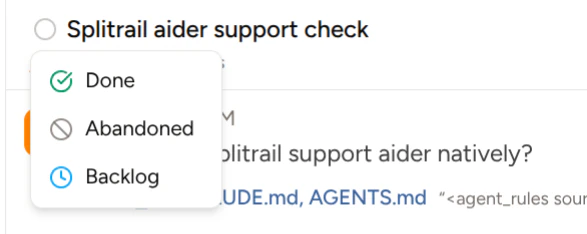
**Status icon next to the chat title:** Up in the header bar at the top of the chat view, there's a gray circle next to the chat title. Clicking it reveals a dropdown containing the chat statuses.
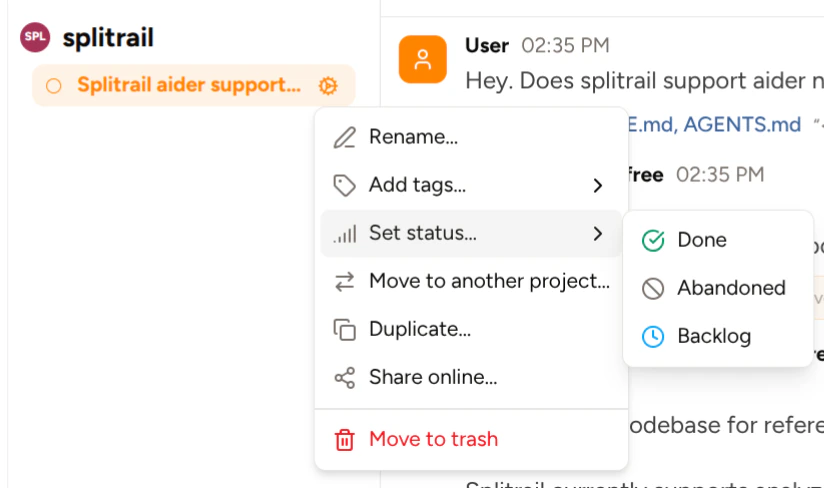
 **Using the chat actions menu in the sidebar:** Click the cog icon next to a chat in the sidebar:
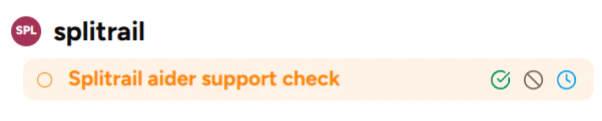
 **Ctrl/Cmd hover and click chats in the sidebar:** Hold Ctrl/Cmd, hover a chat, and click one of the status buttons that appear:
 To unmark a chat, you can hold Ctrl/Cmd, hover a chat in the sidebar, and uncheck the status that the chat uses, or you can use the dropdowns detailed above and click **Clear Status**.
### Viewing all chats
To view all chats regardless of their statuses, hover the project or worktree that contains the chats and click the chats button:
To unmark a chat, you can hold Ctrl/Cmd, hover a chat in the sidebar, and uncheck the status that the chat uses, or you can use the dropdowns detailed above and click **Clear Status**.
### Viewing all chats
To view all chats regardless of their statuses, hover the project or worktree that contains the chats and click the chats button:
