> ## Documentation Index
> Fetch the complete documentation index at: https://docs.piebald.ai/llms.txt
> Use this file to discover all available pages before exploring further.
# Chat tagging
> Organize chats in Piebald with automatic or manual tagging.
Available in [Piebald Pro](https://piebald.ai/pricing)
If you have a lot of chats, it can be helpful to assign tags to them. You can filter chats by their assigned tags, and they can tell you at a glance what areas a particular chat are about.
Tags are created in **Settings → Chat Tags.** Chat tags require [Piebald Pro](https://piebald.ai/pricing).
## Automatically creating tags
Tags can be automatically assigned to a new chat by an AI when it generates a title for it. The system prompt for the **Title & Tag Generation** built-in profile must include instructions to generate tags. By default it does; if it doesn't, click "Reset to Default" to reset it to a default system prompt that includes the instructions.
Here's a screenshot of the title/tag generations model suggesting a new tag:
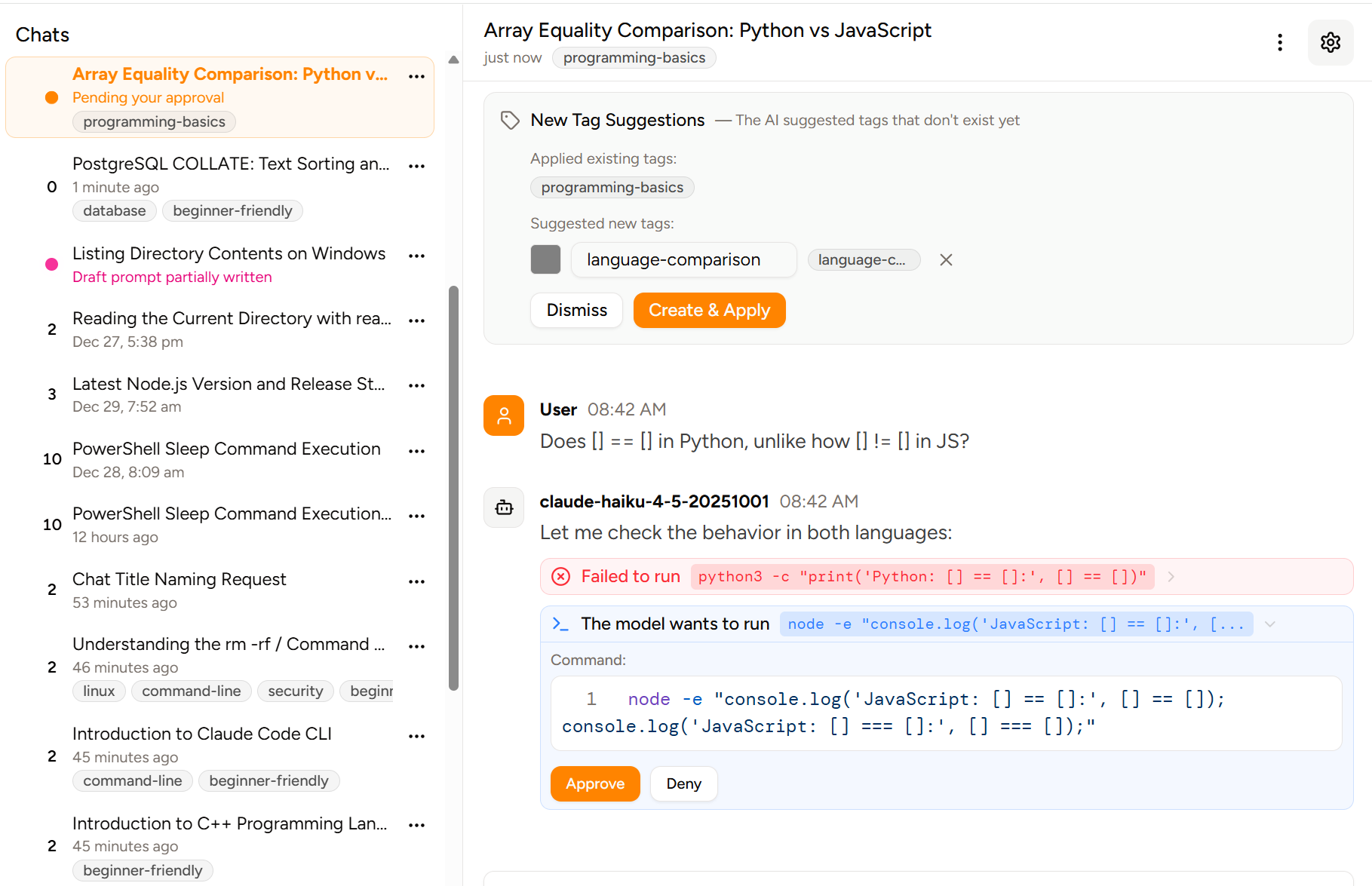 Automatic existing tag assignment and new tag suggestion are enabled by default; go to **Settings → Title & Tag Generation** and turn off **Enable automatic chat tagging** or **Allow LLM to suggest creating new tags** to disable them.
## Filtering chats by tag
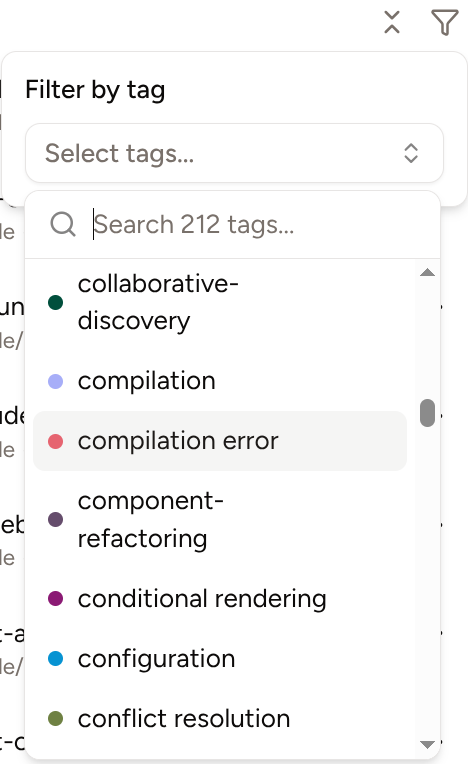
If you have tags created and assigned to chats, you can filter chats by tags. Click the icon in the top-right corner of the chat sidebar and select the tag or tags to filter by:
Automatic existing tag assignment and new tag suggestion are enabled by default; go to **Settings → Title & Tag Generation** and turn off **Enable automatic chat tagging** or **Allow LLM to suggest creating new tags** to disable them.
## Filtering chats by tag
If you have tags created and assigned to chats, you can filter chats by tags. Click the icon in the top-right corner of the chat sidebar and select the tag or tags to filter by:
 ## Manually tagging a chat
If you'd like to manually assign a tag to a chat, click on the icon on a chat in the sidebar and choose ** Tag**. There must be some tags created in the settings beforehand.
## Manually tagging a chat
If you'd like to manually assign a tag to a chat, click on the icon on a chat in the sidebar and choose ** Tag**. There must be some tags created in the settings beforehand.
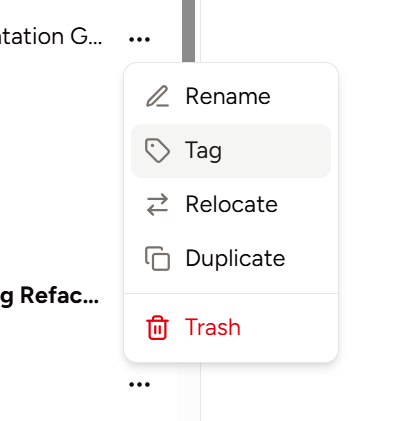 Then select one or more tags from the dialog and click **Save Tags.**