> ## Documentation Index
> Fetch the complete documentation index at: https://docs.piebald.ai/llms.txt
> Use this file to discover all available pages before exploring further.
# OpenCues
[OpenCues](https://opencues.com/) is an open standard for AI autocompletion anywhere based on what you type. *Cues* react to what you've written and surface configured suggestions, while *blanks* act on demand—when you end a line with `_`, the model fills in the rest. In Piebald, you can use OpenCues in the message editor to autocomplete or correct the prompt that you're typing.
## Configuration
To configure OpenCues in Piebald, you must setup cue and/or blank files in `~/.cues` and configure a provider and model to be used with OpenCues.
1. Create a new chat.
2. Click the OpenCues button in the message editor.
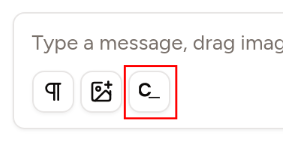 3. Click **Create starter files**.
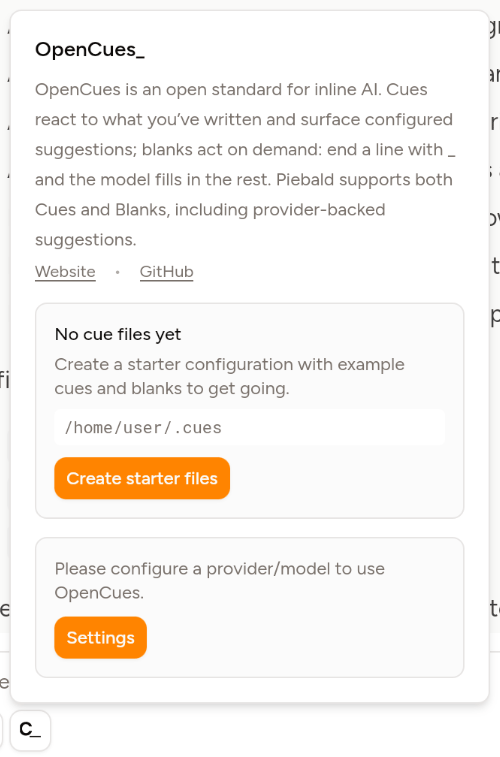 4. Once it's done, click **Settings**.
5. You should be taken to **Settings → OpenCues**.
6. Select a provider and model.
## Using OpenCues
To use OpenCues, type a message to a model, and before sending it, wait for OpenCues to activate and transform your message.
1. Create a new chat.
2. Type a message and **don't send it yet**.
3. If you've setup cues, wait for OpenCues to activate and transform your message.
4. Otherwise, end your message with a space and `_` and it'll activate.
4. Once it's done, click **Settings**.
5. You should be taken to **Settings → OpenCues**.
6. Select a provider and model.
## Using OpenCues
To use OpenCues, type a message to a model, and before sending it, wait for OpenCues to activate and transform your message.
1. Create a new chat.
2. Type a message and **don't send it yet**.
3. If you've setup cues, wait for OpenCues to activate and transform your message.
4. Otherwise, end your message with a space and `_` and it'll activate.
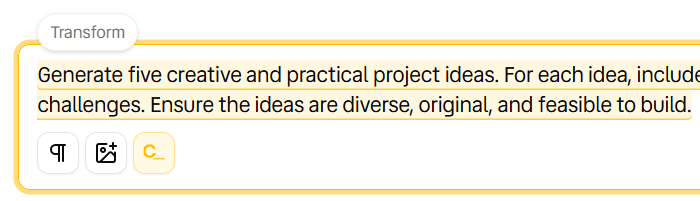
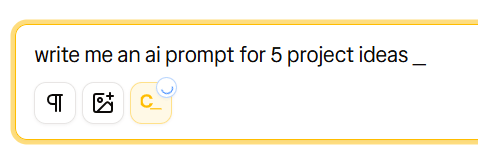 Once your prompt has been transformed, it'll be highlighted:
 ## Hiding the OpenCues button in the message editor
If you don't want to use OpenCues, you can hide the OpenCues button in the message editor.
1. Open **Settings → OpenCues**.
2. Disable **Show the OpenCues button**.
## Errors
If you're getting errors with OpenCues, check these causes.
1. Make sure that you're not using a reasoning model. The current max tokens for OpenCues is 512, which is too small for reasoning models.
2. Check your authentication for your configured provider. Create a new chat with your provider and model and send a test message.
## Hiding the OpenCues button in the message editor
If you don't want to use OpenCues, you can hide the OpenCues button in the message editor.
1. Open **Settings → OpenCues**.
2. Disable **Show the OpenCues button**.
## Errors
If you're getting errors with OpenCues, check these causes.
1. Make sure that you're not using a reasoning model. The current max tokens for OpenCues is 512, which is too small for reasoning models.
2. Check your authentication for your configured provider. Create a new chat with your provider and model and send a test message.