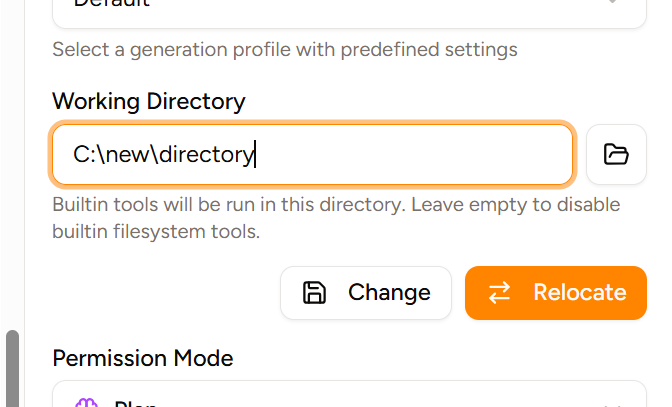
Available in Piebald ProSometimes you might create a chat in one worktree, and work with the AI to build a plan, but then you want to implement that plan in the same chat but in a different worktree. Piebald allows you to relocate chats from one directory to another, which will move a chat to the specified directory and automatically rewrite all occurences of the old path to the new path across all user and AI messages and tool call inputs and outputs.To duplicate a chat, click the icon on a chat in the sidebar and choose Relocate. You’ll be prompted to select a target directory. Once you select one, Piebald will update the entire chat history to point to the new path, and the AI will never know that it worked in the old directory.You can also relocate a chat by manually editing the directory path in the config sidebar. To do that, open the chat config sidebar by clicking the icon in the top-right corner of the chat view, and edit the Working Directory field, and click Relocate:Chat relocation requires Piebald Pro.
Available in Piebald ProPiebald also allows you to duplicate chats. All user and AI messages and all tool calls are preserved in the copy.To duplicate a chat, click the icon on a chat in the sidebar and choose Duplicate.Chat duplication requires Piebald Pro.