{
  "display_information": {
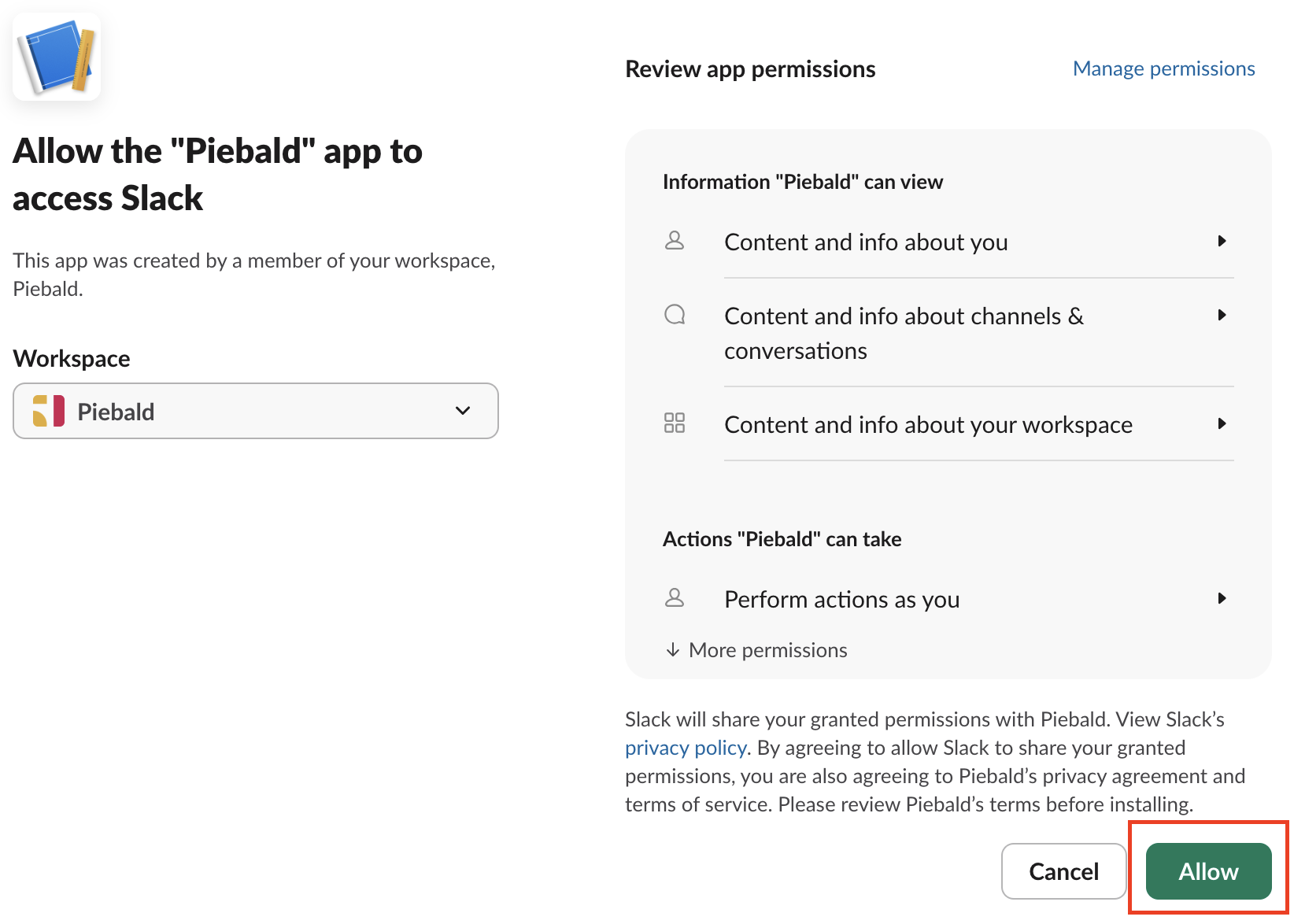
      "name": "Piebald",
      "description": "The ultimate agentic AI control experience for developers.",
      "background_color": "#2c2d30",
      "long_description": "Piebald is a desktop & web app that makes it easier than ever to do agentic development, while at the same time giving you complete control over the configuration, context, and flow, all from a powerful desktop & web UI that runs on macOS, Windows, and Linux."
  },
  "oauth_config": {
      "redirect_urls": [
          "https://piebald.ai/desktop/redirect"
      ],
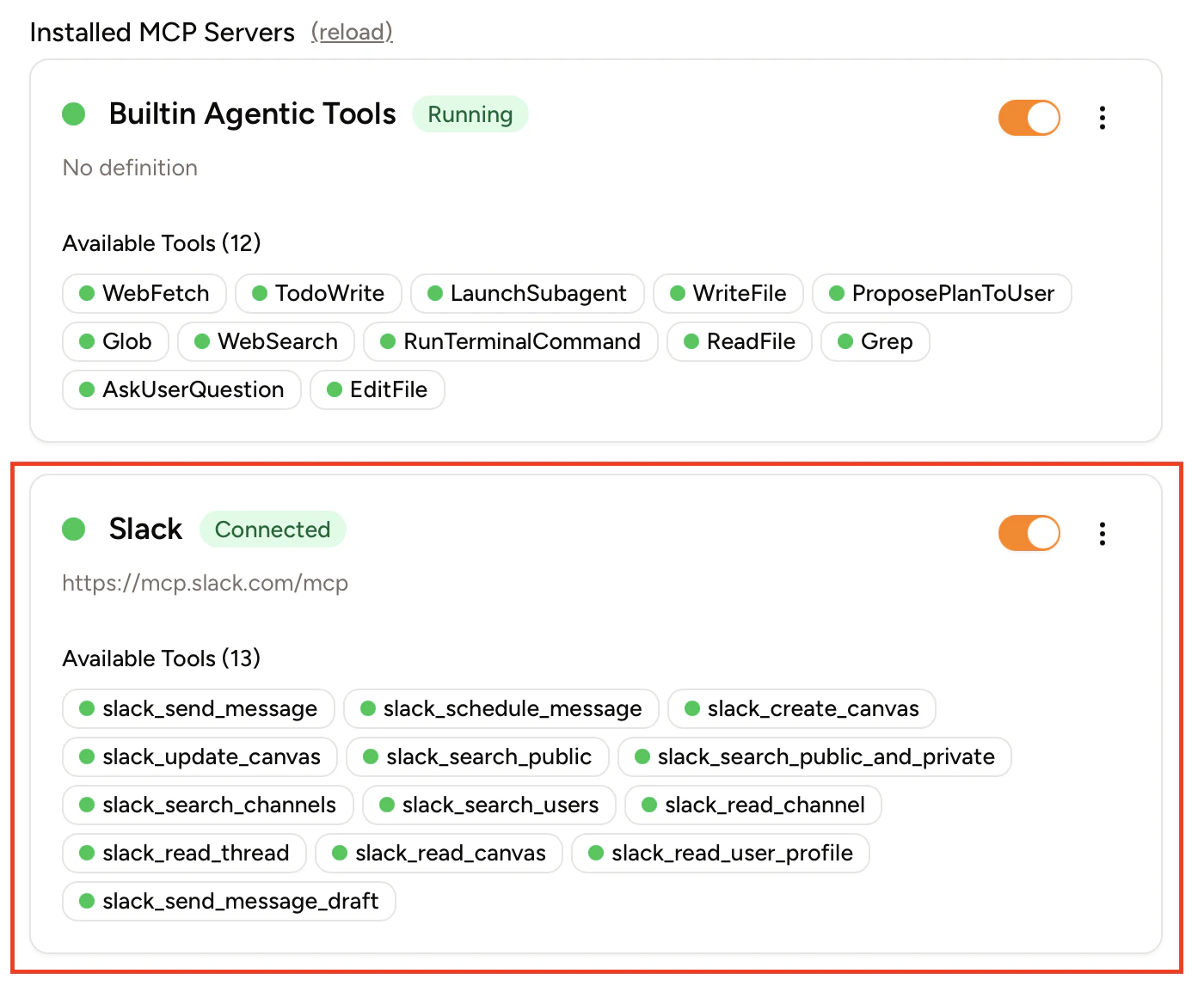
      "scopes": {
          "user": [
              "canvases:read",
              "canvases:write",
              "channels:history",
              "chat:write",
              "groups:history",
              "im:history",
              "mpim:history",
              "search:read.files",
              "search:read.im",
              "search:read.mpim",
              "search:read.private",
              "search:read.public",
              "search:read.users",
              "users:read",
              "users:read.email"
          ]
      },
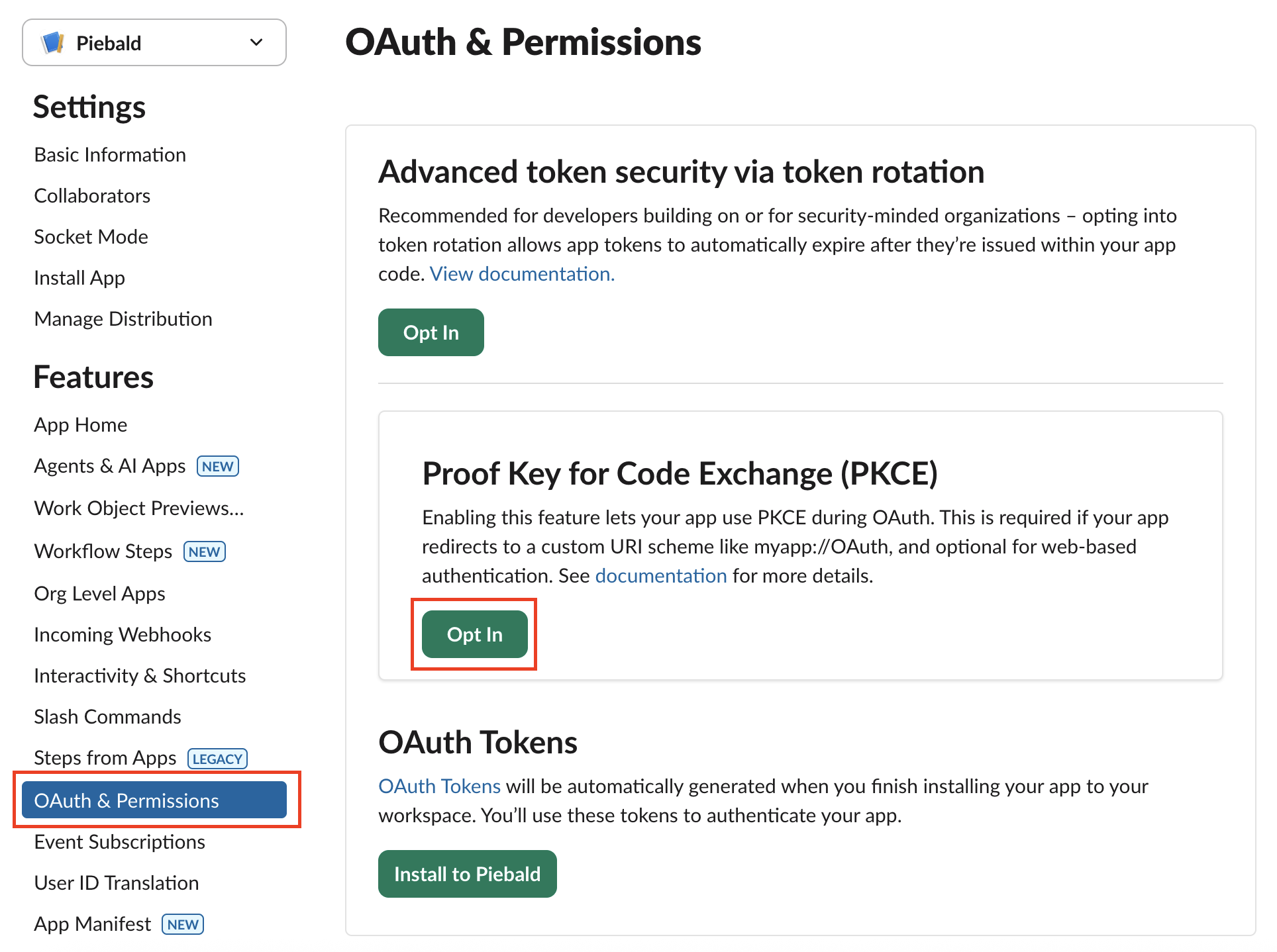
      "pkce_enabled": false
  },
  "settings": {
      "org_deploy_enabled": false,
      "socket_mode_enabled": false,
      "token_rotation_enabled": false
  }
}