

Subagents
Available in Piebald Basic (Free) Subagents enable the main agent to save context by offloading scoped sub-tasks such as exploring the codebase and making mechanical multi-file edits to new instances of the model or other models. When the model spawns a subagent, it’ll display as a normal tool call, but the tool call window will display a complete inline chat interface, allowing you to approve or deny any tool calls that the subagent makes. The inline view is intentionally minimal—you can only approve/deny tool calls. Everything else (editing, deleting, regenerating, etc.) requires opening the subagent chat in the main window. If you’d like to see the prompt that the model used for the subagent, you can hover over the “Prompt” text in the bottom-left corner of the subagent tool window. The subagent chat can be opened in the main window more easily using the “Open chat” button in the bottom-right corner of the subagent tool window. Once you’ve opened the subagent chat, you can then return to the main agent’s chat with the left-pointing arrow button up next to the chat title:
Launching subagents
Subagents are spawned by a builtin tool,LaunchSubagent. This tool takes a prompt parameter populated by the model. The last message generated by the subagent will be returned as the output of this tool back to the main agent.
The LaunchSubagent tool creates a new chat and sends the prompt parameter as a first user message and automatically attaches a Subagent context notification that informs the subagent model that it’s running in a subagent context.
Subagents are meant to execute focused tasks, so some built-in tools, like ProposePlanToUser, LaunchSubagent, etc. are disabled for them.
Since subagent chats are normal Piebald chats, you can work in the subagent chat like any other chat, even when the subagent is in progress. You can tag them, generate titles for them, etc. Subagent chats are displayed in the sidebar and are nested under their parent chat.
Since subagents function as extensions of the main agent, they’re automatically approved in all permission modes. Because of this, we’ve added settings for controlling the default provider, model, profile and permission mode for subagents in Settings → Built-in Tools.
Chat compaction
Available in Piebald Basic (Free) Once the chat’s context window is full, you can compact a large chat into a new smaller chat. When you compact a chat, the entire chat you’re compacting is sent to your configured LLM, which is told to compact it. Tool calls in the chat being compacted are carefully truncated to include only useful context.Configuring summarization and compaction
There are many facets of the summarization process and compaction that can be configured.- The provider and model used to generate the summary can be configured from Settings → Context Compaction → Provider and Model.
- The system prompt, temperature, and other hyperparameters used to generate the summary can be configured using the builtin Context Compaction profile from Settings → Profiles.
- Auto-compaction can be enabled from Settings → Context Compaction → Enable Auto-Compaction.
- Remaining context window space threshold at which auto-compaction should be triggered can also be configured from Settings → Context Compaction → Trigger threshold. This setting is only visible when Enable Auto-Compaction is on.
Custom instructions for compaction
If you haven’t enabled the Settings → Context Compaction → Skip custom instructions dialog setting, manually compacting a chat will trigger a dialog to open, allowing you to enter custom instructions that will be added to the system prompt sent to the summarization model.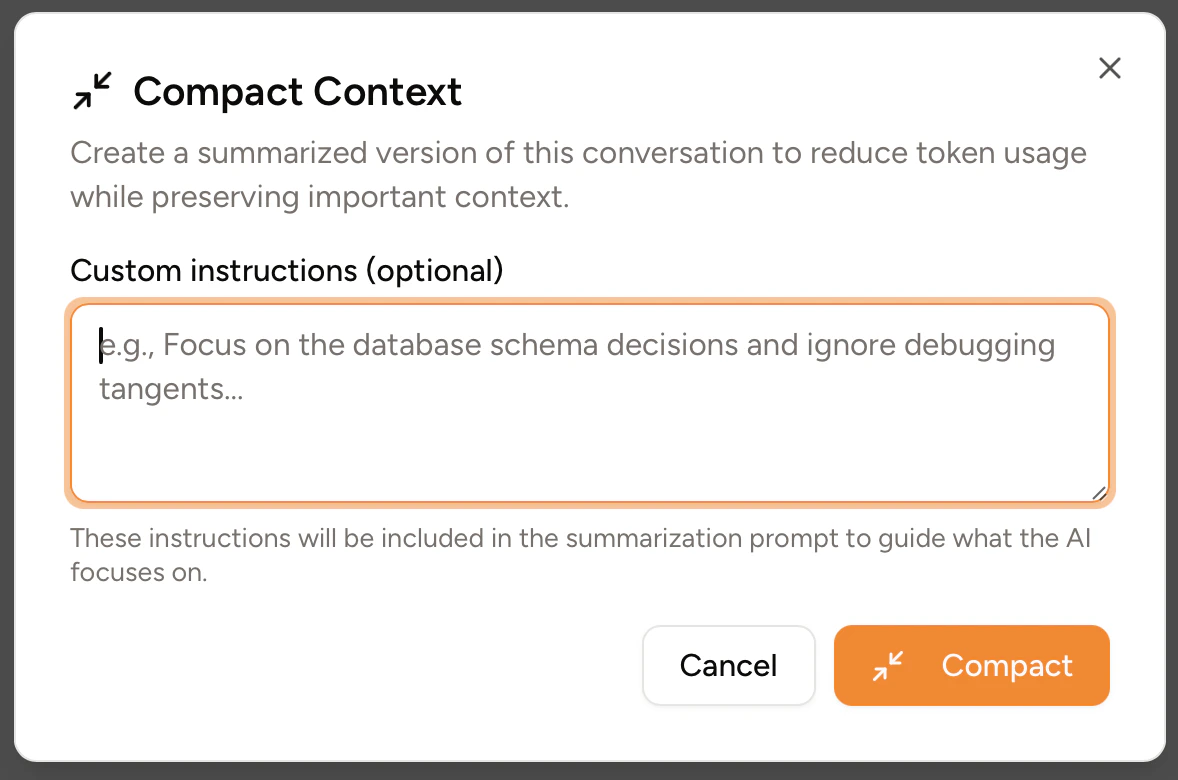
Token count usage monitor
Piebald has a badge displaying the number of tokens that a particular chat uses. This badge updates each time a new assistant message is completed.