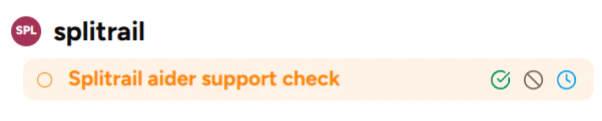
Available in Piebald Basic (Free) In Piebald, once you’re done with a chat, you can assign it a status of Done, Backlog, or Abandoned. Chats with the Done or Abandoned status are hidden from your active chat sidebar. Backlog chats are shown in a subsection of the project/worktree. If you don’t assign any status, the chat will be considered and marked as in progress.

Marking chats

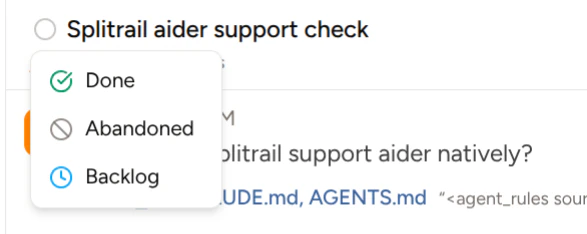
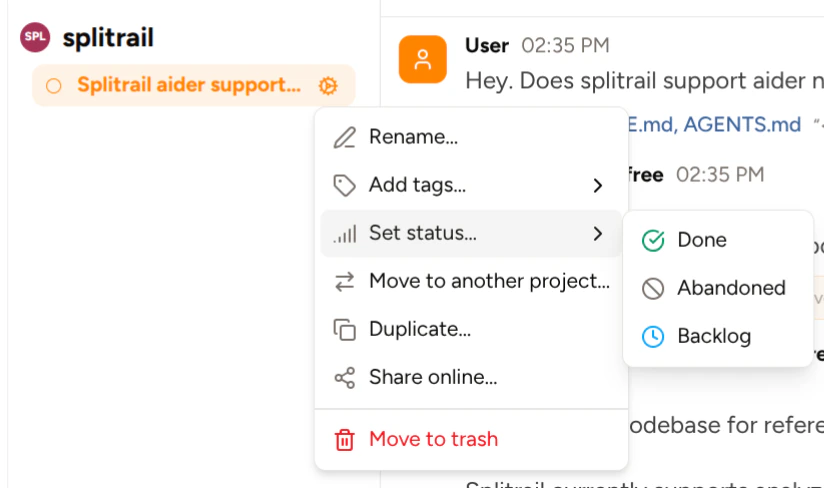
You can assign a status to a chat using three methods: Status icon next to the chat title: Up in the header bar at the top of the chat view, there’s a gray circle next to the chat title. Clicking it reveals a dropdown containing the chat statuses. chat_bar_status.png Using the chat actions menu in the sidebar: Click the cog icon next to a chat in the sidebar: sidebar_set_status.png Ctrl/Cmd hover and click chats in the sidebar: Hold Ctrl/Cmd, hover a chat, and click one of the status buttons that appear: ctrl_hover_chat_status_buttons.png To unmark a chat, you can hold Ctrl/Cmd, hover a chat in the sidebar, and uncheck the status that the chat uses, or you can use the dropdowns detailed above and click Clear Status.
Viewing all chats

To view all chats regardless of their statuses, hover the project or worktree that contains the chats and click the chats button: project_chats_button.png