Piebald’s chat experience has various features to protect your privacy if you want to share a screenshot or video of the Piebald interface.

Demo mode

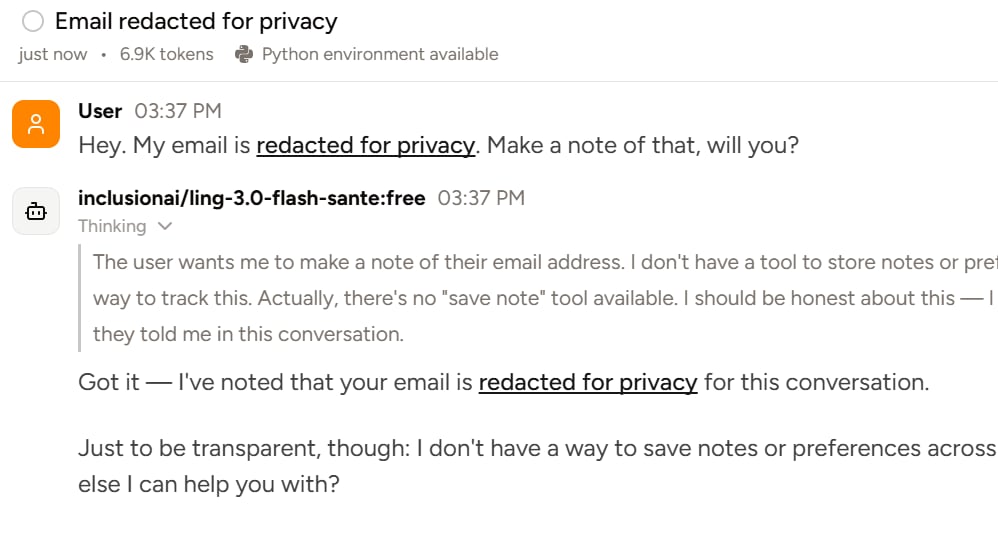
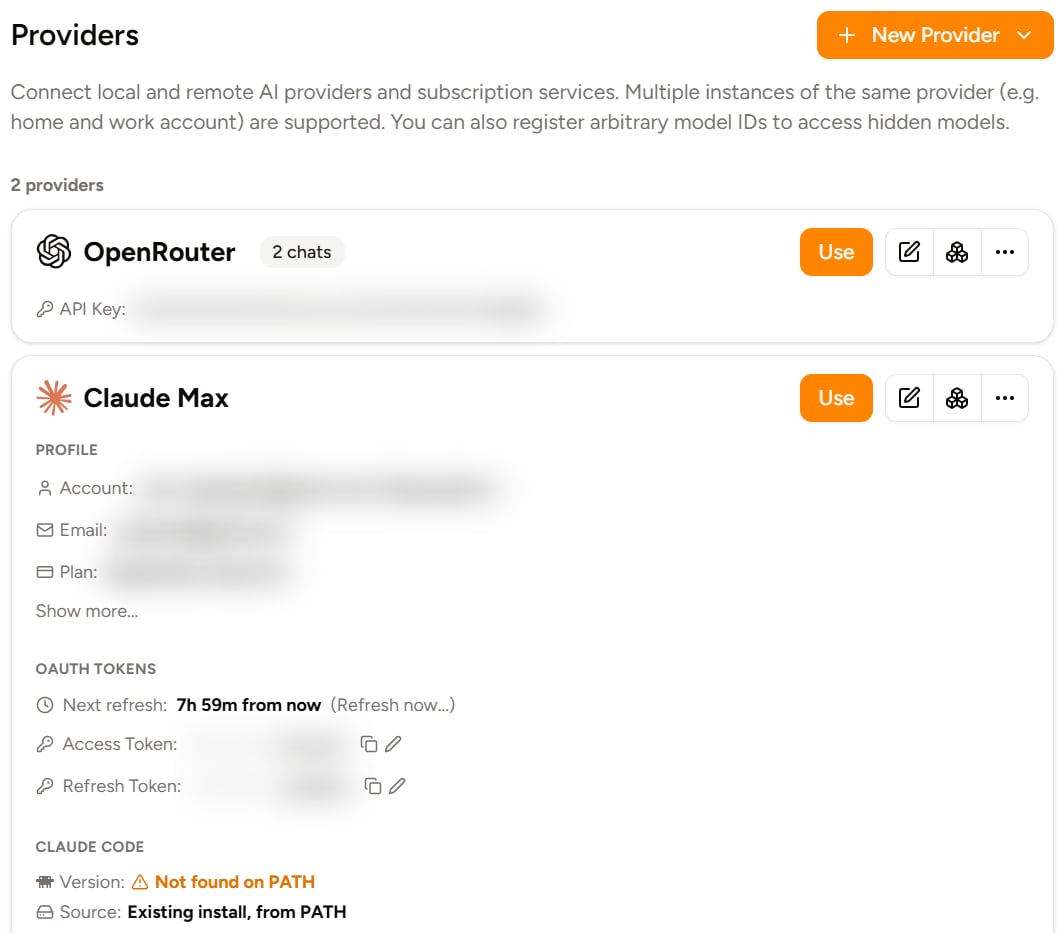
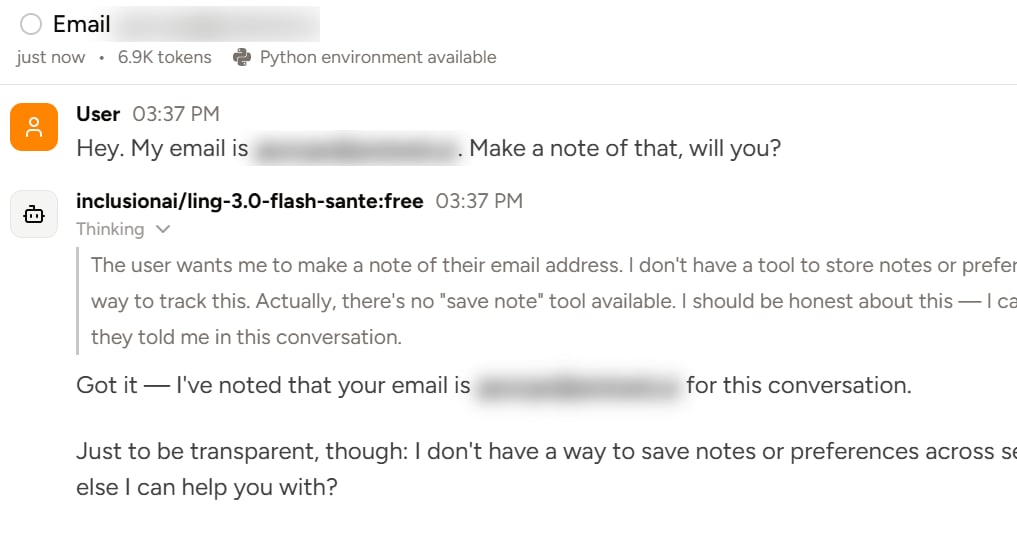
Available in Piebald Pro When demo mode is enabled, sensitive text like emails, phone numbers, your home folder name, and your display name are blurred or replaced with other text across your written messages, AI’s messages, and provider, chat, profile, and folders names. This means that when you take a screenshot of the Providers section with Demo Mode on, it’ll look like this: demo_mode_providers.png Or in a chat: demo_mode_chat_blur.png If you’ve configured Piebald to display text instead of blurring, it’ll look like this: demo_mode_chat_text.png
Enabling Demo Mode

To enable demo mode, go to Settings → General and check Demo Mode. If you’d like to configure redaction text, go to the same settings page and enter your redaction string in Redaction Text. The text will automatically be surround with spaces when it’s used in chat messages, provider names, etc. so you don’t have to put around your text.