- Complete LSP auto-complete.
- LLM-driven code auto-complete.
- Next Edit Suggestions (NES) using providers like GitHub Copilot, Windsurf, Zed, etc.
Opening the code editor
Open the code editor by clicking on a file in the file browser. Once open, the code editor allows you to modify the file and save it.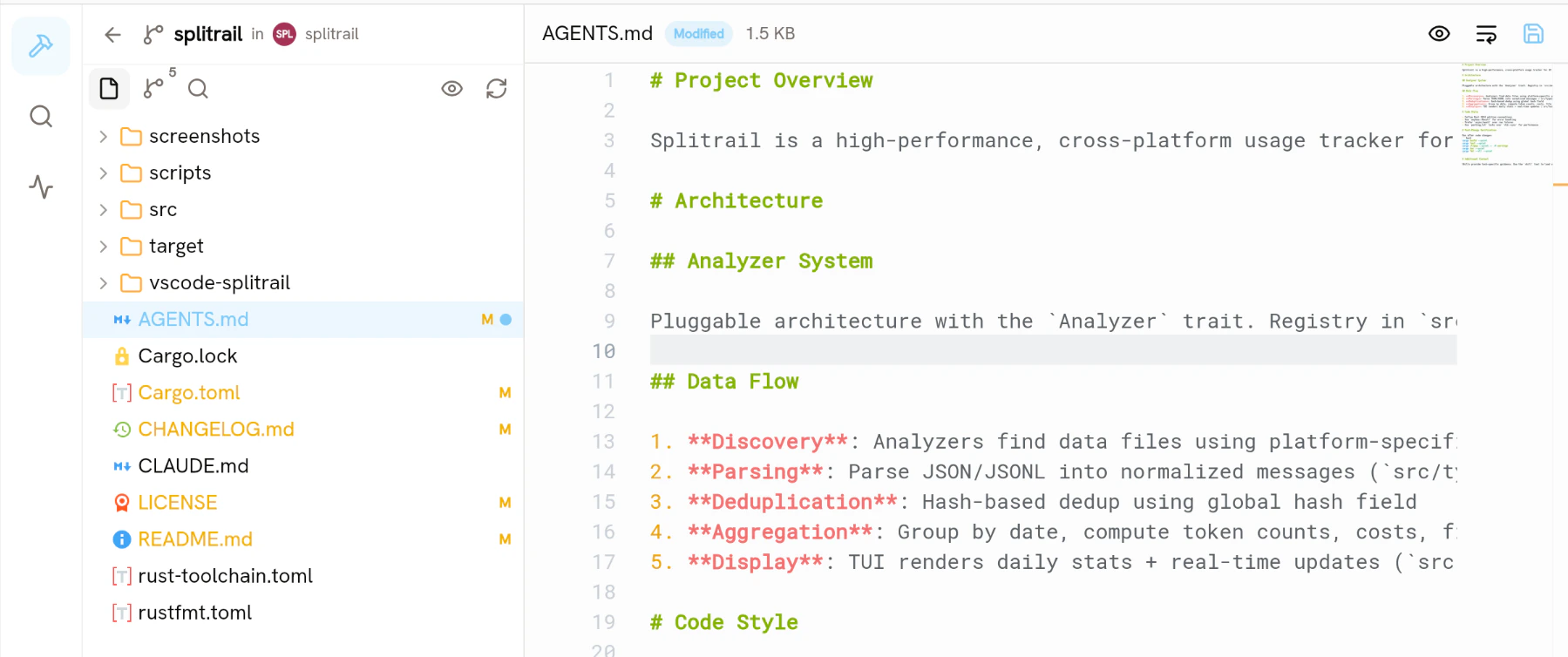
Saving edits
To save, press Ctrl/Cmd+S or click the save button in the top right corner. By default, long lines aren’t wrapped. To wrap them, click the word wrap button in the top left corner.Markdown preview
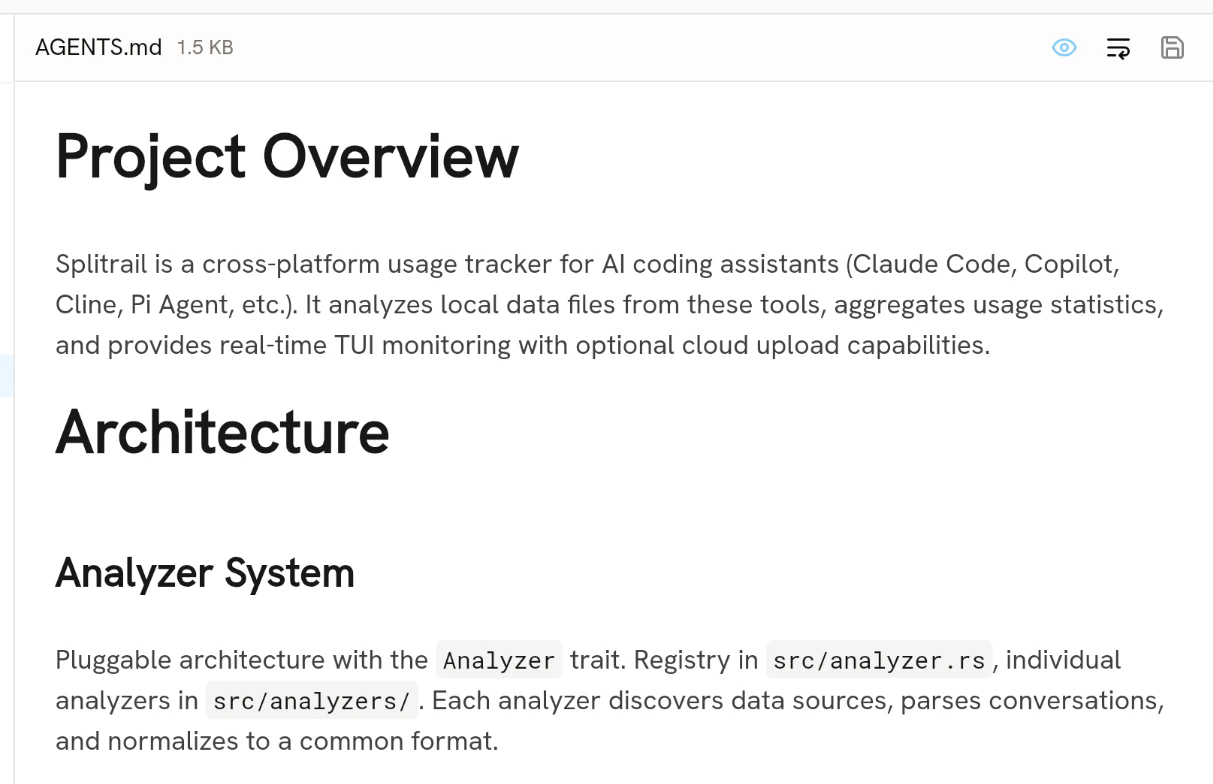
In Piebald, you can preview Markdown files with the same rendering system that the main chat view uses. Open a markdown file and click the eye button in the top left corner. This will toggle preview mode.