

_, the model fills in the rest. In Piebald, you can use OpenCues in the message editor to autocomplete or correct the prompt that you’re typing.
Configuration
To configure OpenCues in Piebald, you must setup cue and/or blank files in~/.cues and configure a provider and model to be used with OpenCues.
- Create a new chat.
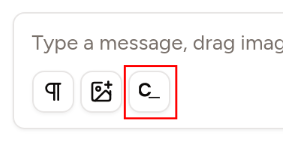
- Click the OpenCues button in the message editor.
- Click Create starter files.
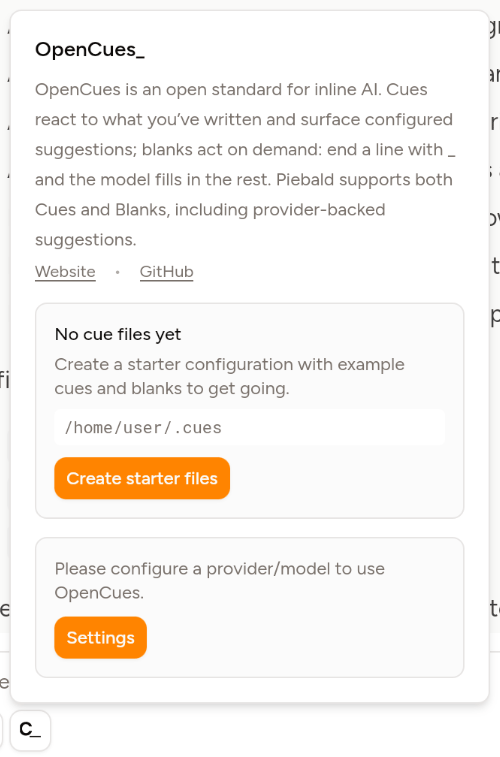
- Once it’s done, click Settings.
- It should open Settings → OpenCues.
- Select a provider and model.
Using OpenCues
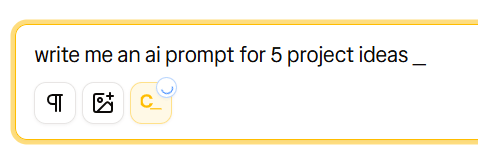
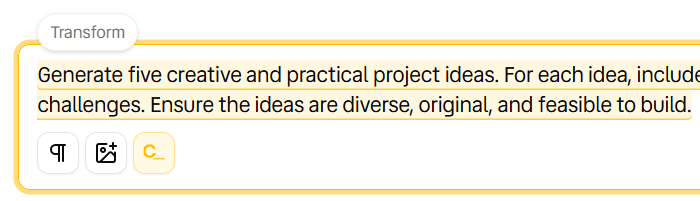
To use OpenCues, type a message to a model, and before sending it, wait for OpenCues to activate and transform your message.- Create a new chat.
- Type a message and don’t send it yet.
- If you’ve setup cues, wait for OpenCues to activate and transform your message.
- Otherwise, end your message with a space and
_and it’ll activate.
Hiding the OpenCues button in the message editor
If you don’t want to use OpenCues, you can hide the OpenCues button in the message editor.- Open Settings → OpenCues.
- Disable Show the OpenCues button.
Errors
If you’re getting errors with OpenCues, check these causes.- Make sure that you’re not using a reasoning model. The current max tokens for OpenCues is 512, which is too small for reasoning models.
- Check your authentication for your configured provider. Create a new chat with your provider and model and send a test message.